
Configuring the Signature 365 Entra ID Connector
This article explains how to configure the Signature 365 Entra ID Connector to synchronise directory data from Microsoft Entra ID into Signature 365.
The connector supports two deployment scenarios using customer-managed infrastructure:
- An Azure Container Instance configured by PowerShell script in your Microsoft Azure subscription.
- An on-premises Entra connector using a customer-managed Entra ID application registration.
The container instance or on-premises Entra ID connector are installed within your environment and cannot be accessed or managed by the Symprex support team.
In both cases, these options integrate with your Microsoft 365 instance and let you configure specific groups for sync with Signature 365. This replaces the standard integration with Signature 365.
These integration methods require a Signature 365 Enterprise subscription. Contact the support team for more information.
Prerequisites
- Entra ID Connector entitlement enabled by the support team.
- Enterprise application management permissions on your Entra ID tenant.
- An Azure subscription within the same Entra ID tenant the container instance will be created.
- PowerShell 7
- The Entra ID Connector PowerShell scripts.
Creating a storage account
Login to the Azure Portal portal.azure.com
Open Entra ID, and from the overview page, copy the Entra ID tenant value, and insert this into the $entratenantid value in the entra-id-customer-container-deploy-script.ps1 PowerShell script.
Search for Subscription in the search bar
Select your Azure subscription to create the ACI within. Contact your internal IT team if your company has no Azure subscription.
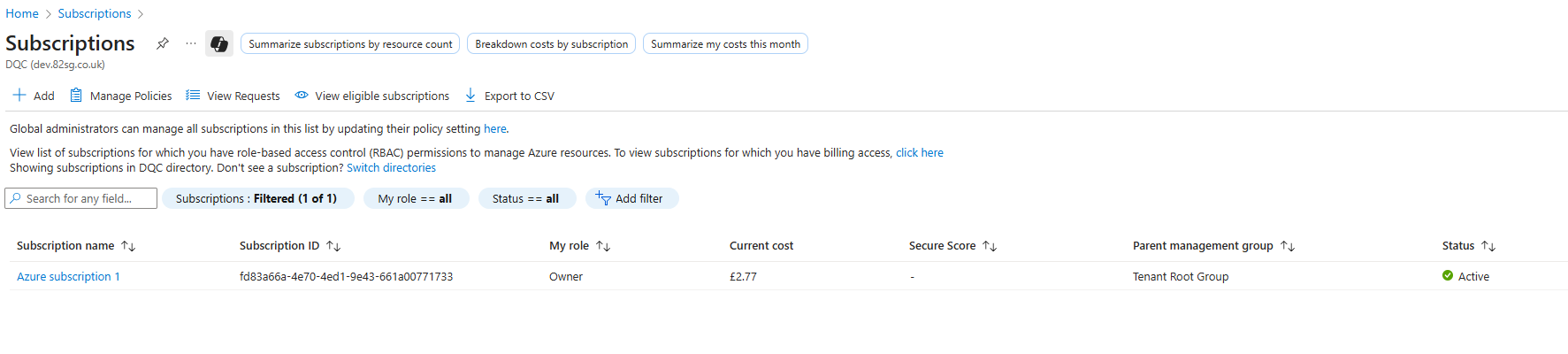
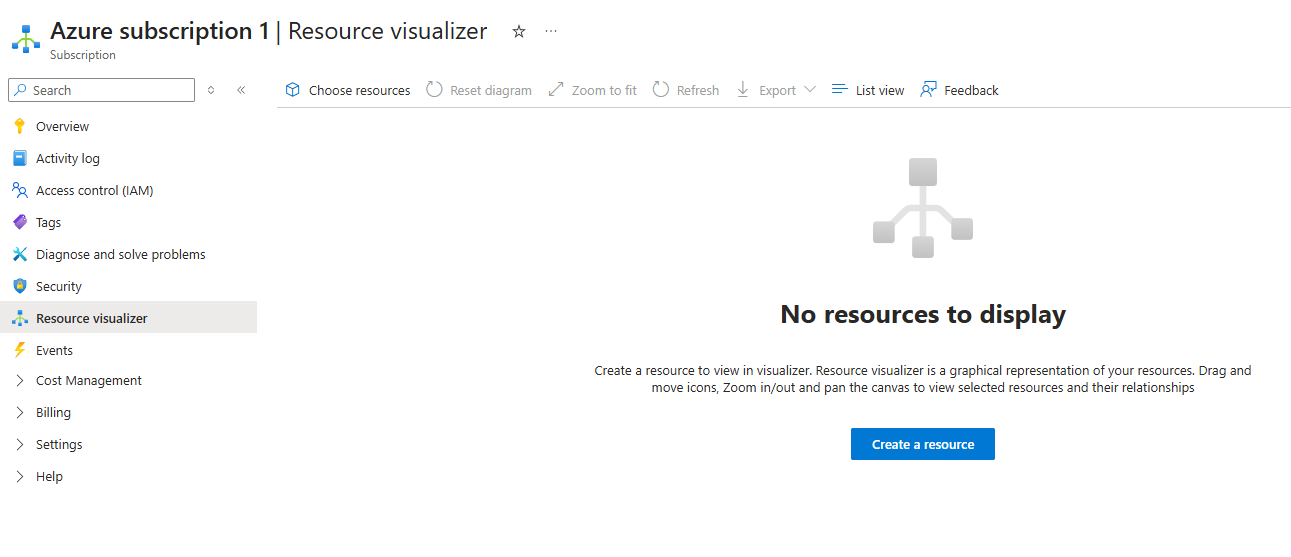
Select the Resource Visualiser option from the menu, and click create a resource.
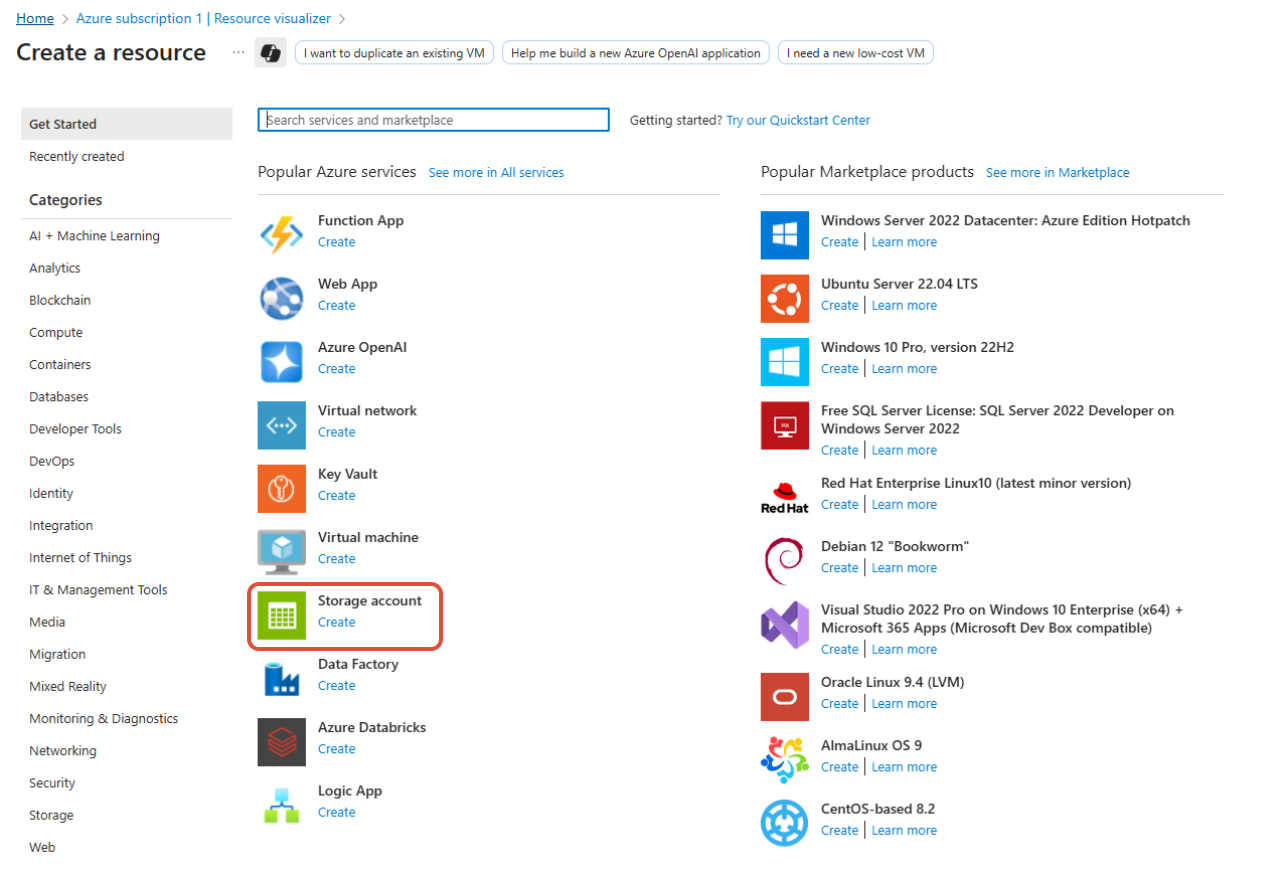
Search for "Storage Account" and click create.
It is recommended to create a new resource group for this purpose.
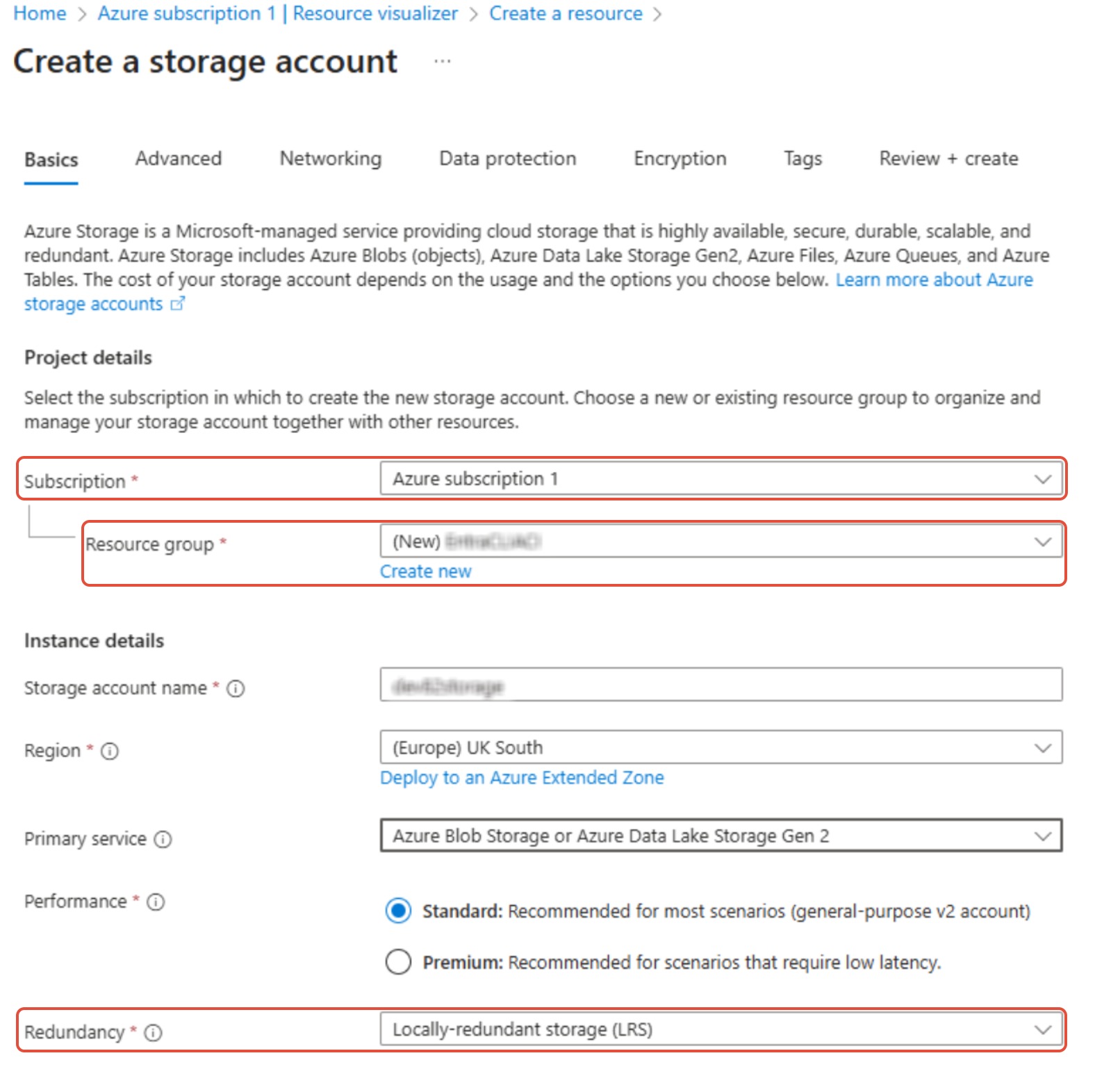
- Name the subscription as desired
- Select an existing or create a new Resource group
- Primary service must be Azure Blob Storage, region should match your desired region
No other changes to settings are required, hit the Review + create button to save the changes.
Note the Resource group name and Storage account name, and update the deployment script with these details.
Creating the managed identity
The support team will provide two PowerShell scripts, which should be extracted to the same folder. The entra-id-customer-container-deploy-script.ps1 script is run to create the managed identity.
The PowerShell script must be run as an administrator on the local device, and ideally should be run using a Global Administrator account on your Microsoft 365 tenant.
Set-ExecutionPolicy Bypass -Scope ProcessThis temporarily bypasses PowerShell execution policy restrictions for the current PowerShell session, allowing scripts to execute without execution-policy warnings or prompts.The execution policy change applies only to the current PowerShell session and is automatically removed when the session is closed. No further action is required.The script will request access to complete these configuration changes via Microsoft Graph and create the required application. Ensure Consent on behalf of your organisation is selected.
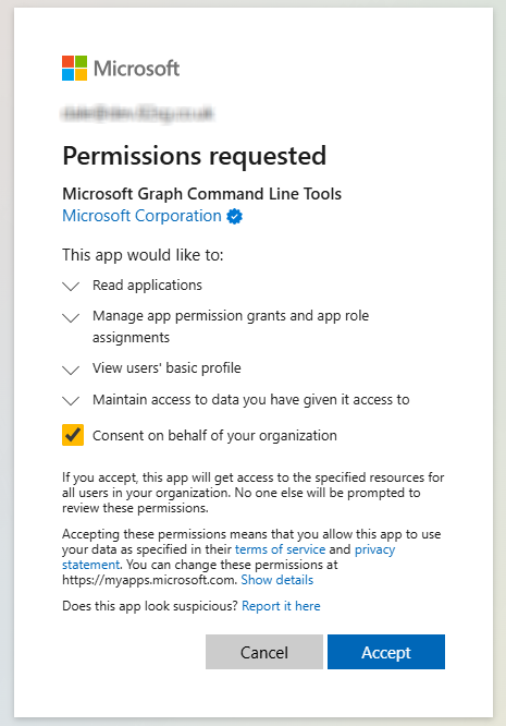
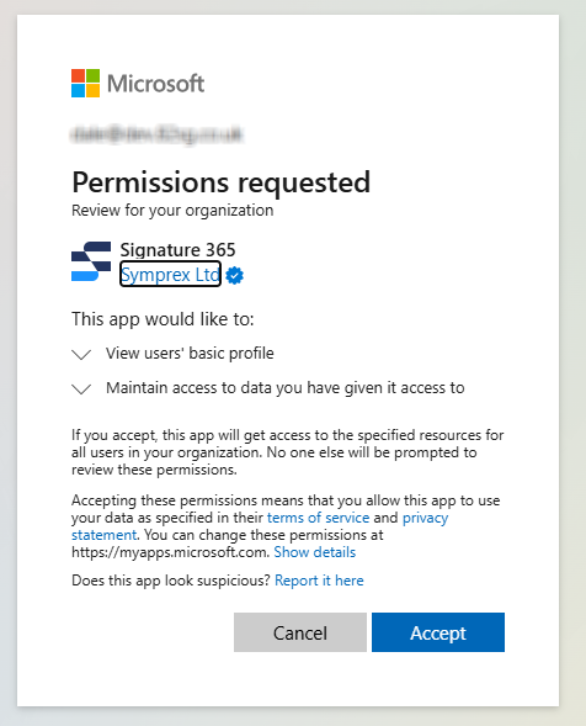
A Managed Identity will be created, along with the related Blob storage area to store these details. The script output will detail the steps performed.
Permission to run a number of Graph and Azure PowerShell modules will be requested as part of the deployment process.
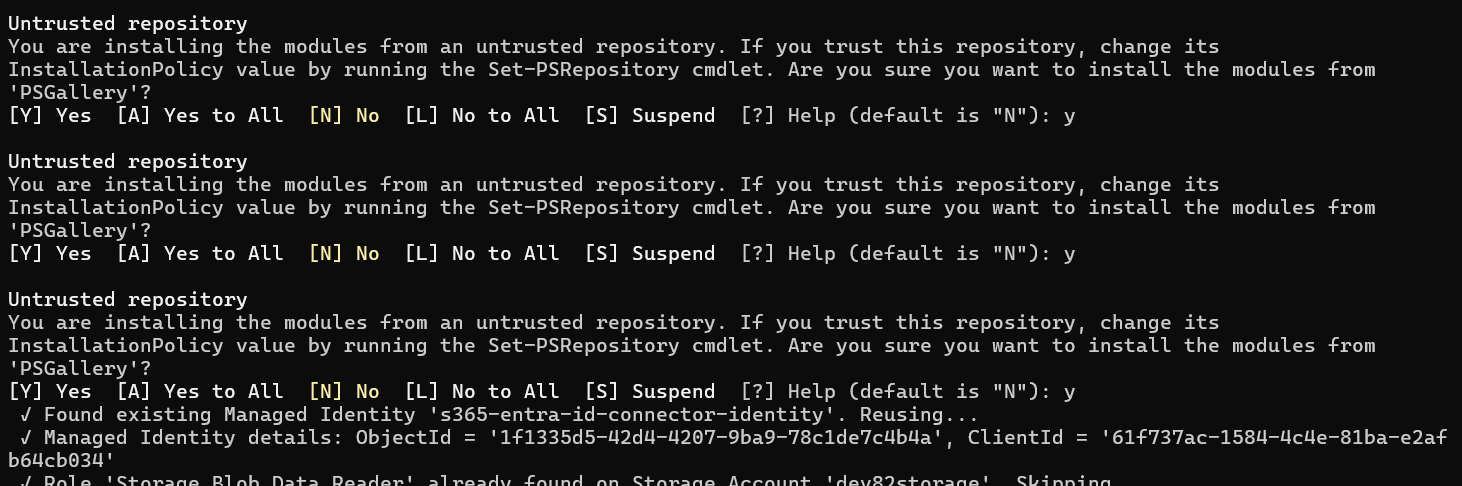
The installation will request confirmation that your account has permissions to assign application roles within Entra ID. An account capable of assigning application level permissions for an Enterprise application, or a Global Administrator account is required for this step.
Selecting "Yes" will attempt to assign the required roles. Selecting "No" will output the required commands to be executed by a user with appropriate permissions.
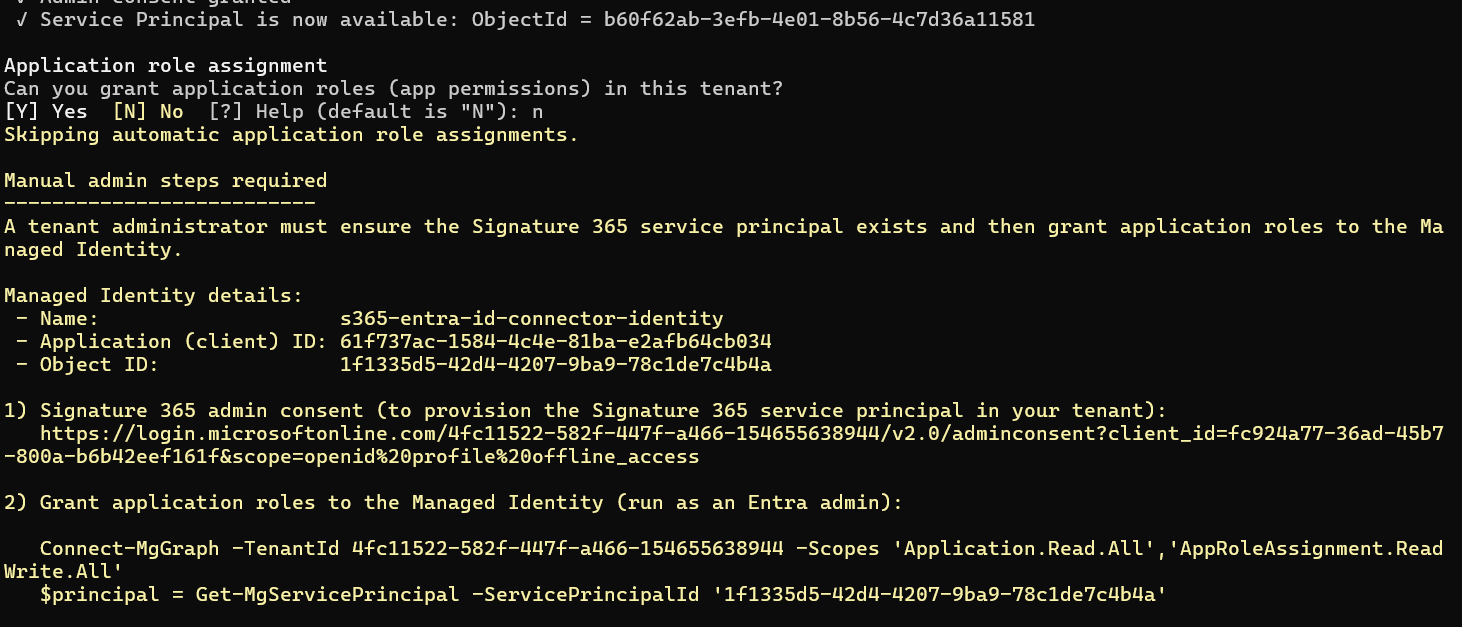
The script now details the tenant and application IDs to be entered for the Signature 365 configuration.

Enabling the Entra ID connector
Login to the Signature 365 portal, and enable the Entra ID connector from Settings > Integrations > Entra ID.
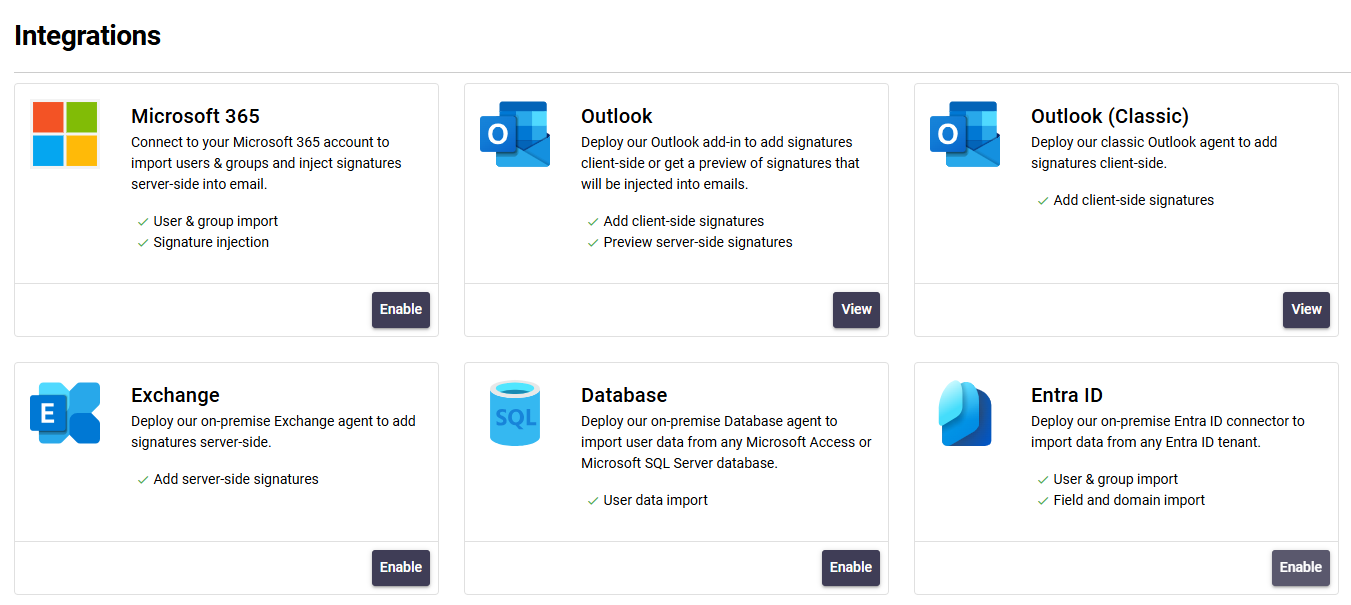
Select Enable.

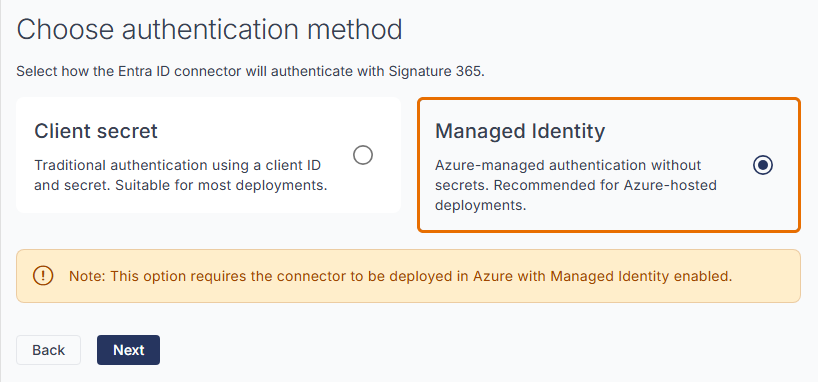
Select the Managed Identity for Azure hosted deployments authentication method, then click Next.
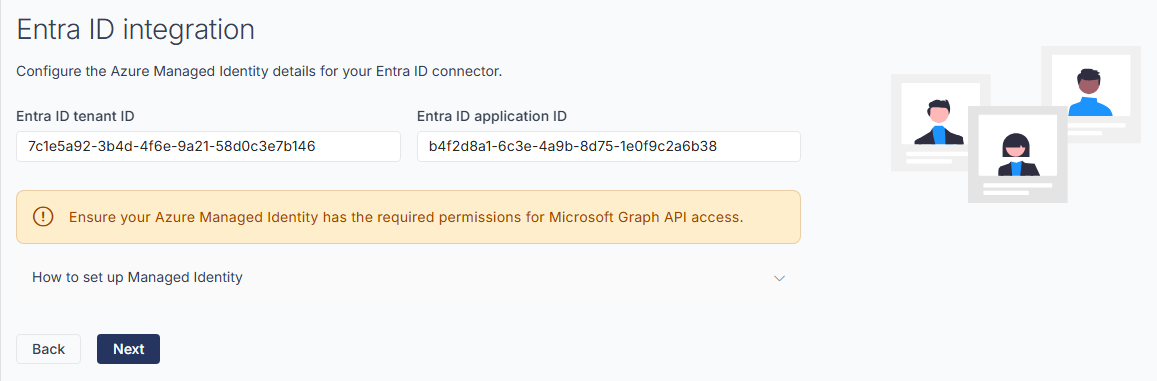
Configure the Managed Identity settings using the Entra ID tenant and application ID returned from the PowerShell script.
This will return the tenant, client and application IDs referenced in the PowerShell script.
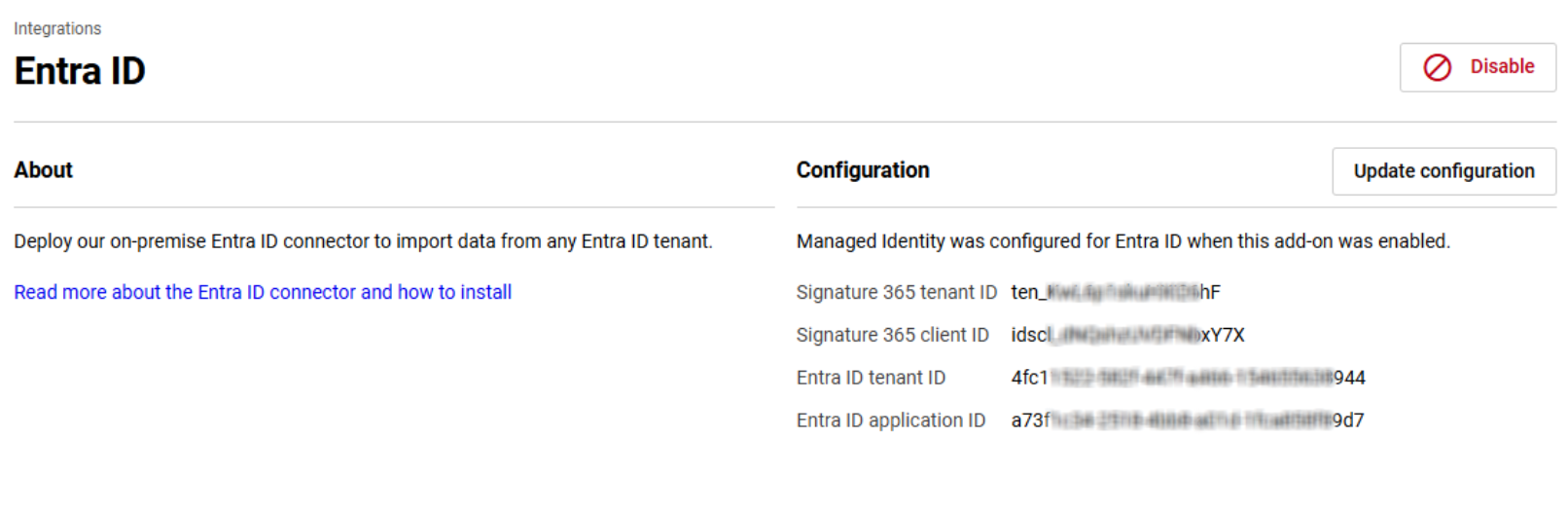
Repeat this process for any additional tenants to be integrated with the Entra CLI component.
All Signature 365 tenants used with the Entra ID connector must have this function activated and enabled by the Symprex support team.
Create the configuration file used by the container
A default configuration document is listed in the PowerShell script and is included in the installation files. Update the EntraId and Signature365 sections with the relevant IDs created in the previous step
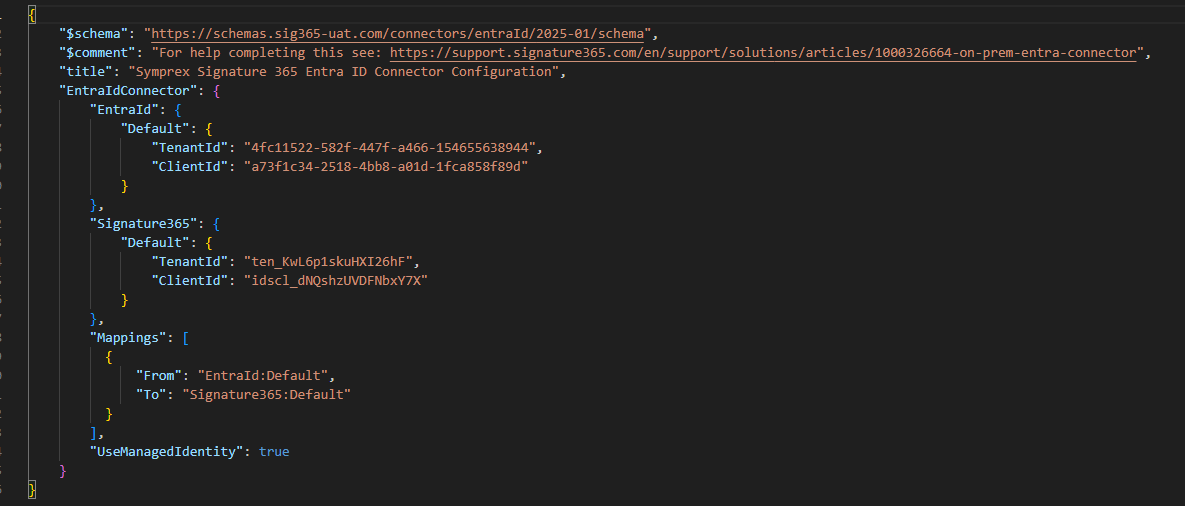
config.json using Azure Storage Explorer.For customers wishing to split across multiple Signature 365 tenants, the Signature365 and Mappings sections must be configured to assign Microsoft 365 groups to individual Signature 365 tenants.
Updating the configuration file
Signature365 - This section details the Signature 365 tenants to import to, and the corresponding access tokens to use for this. Replace <Tenant1> and <Tenant2> with the names of your Signature 365 tenant, and Token with the value from the Entra CLI integration, starting idscl\_
"Signature365": {
"Tenant1": {
    "Token": "idscl_ZxxxxxxxxxxxxxxxxxxxxxxxxxxxxxxxxxxxxxxxxxxxxxxxxxZTn0KU*kVaHU"
},
"Tenant2": {
    "Token": "idscl_hKxxxxxxxxxxxxxxxxxxxxxxxxxxxxxxxxxxxxxxxxxxxxxxxxxxxxxxRDa9v&6Z"
}
}
Mappings - This section details the groups that should be used to map to the Signature 365 tenants;
From:For most customers, this will be EntraID:Default, matching the default import sourceTo:The destination Signature 365 tenant, as named in theSignature365sectionLimitToGroups:The group containing the accounts to be imported into this Signature 365 tenant. This must be entered as the ObjectID listed for the group in Entra ID
"Mappings": [
{
    "From": "EntraId:Default",
    "To": "Signature365:Tenant1",
    "LimitToGroups": ["622b1005-624a-457b-a148-566d50f3f1ff"]
},
{
    "From": "EntraId:Default",
    "To": "Signature365:Tenant2",
    "LimitToGroups": ["201b4787-3b9e-411d-8def-a464b9d2d5df"]
}
]
Save this file as config.json on your local device
Azure Storage Explorer
Use Azure Storage Explorer to upload the configuration file to Azure Blob storage.
Download and install Azure Storage Explorer - Azure Storage Explorer – cloud storage management | Microsoft Azure
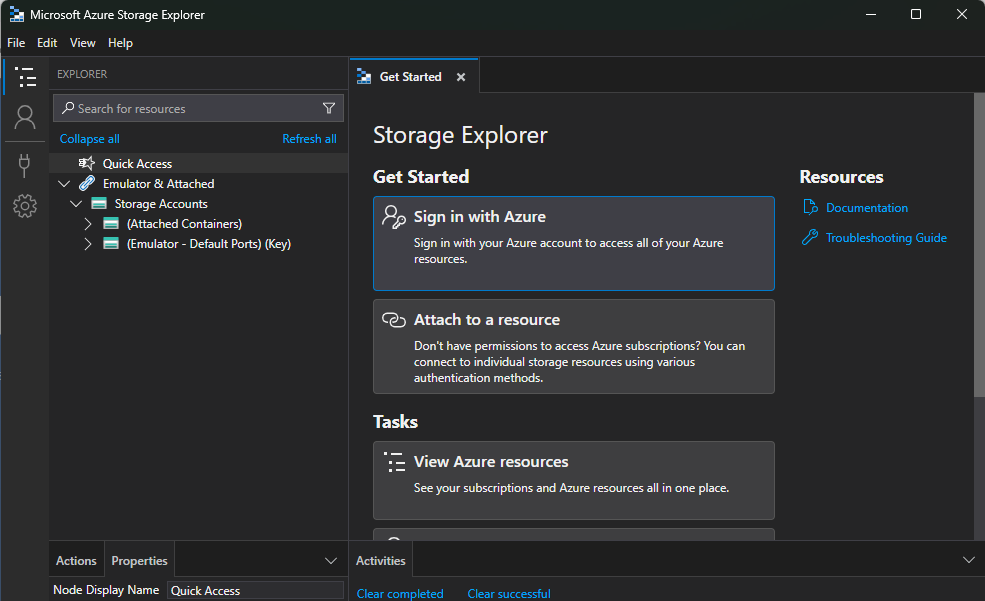
Select the "Sign in with Azure" option
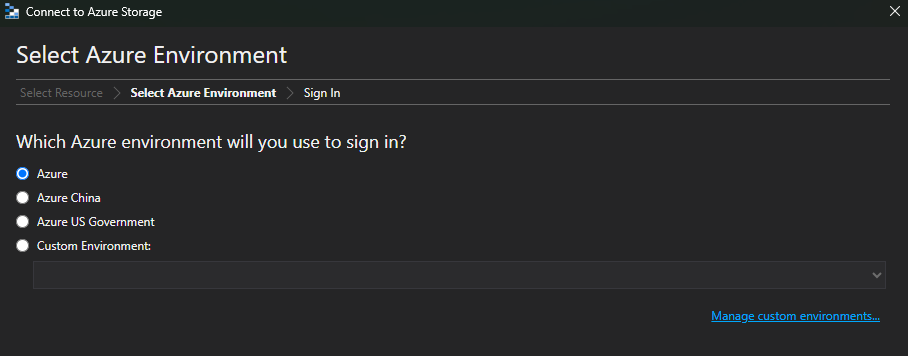
Select your Azure environment
Storage Explorer will prompt you to login - ensure you select the correct Microsoft 365 tenant. Once logged in, you will see the Subscription.
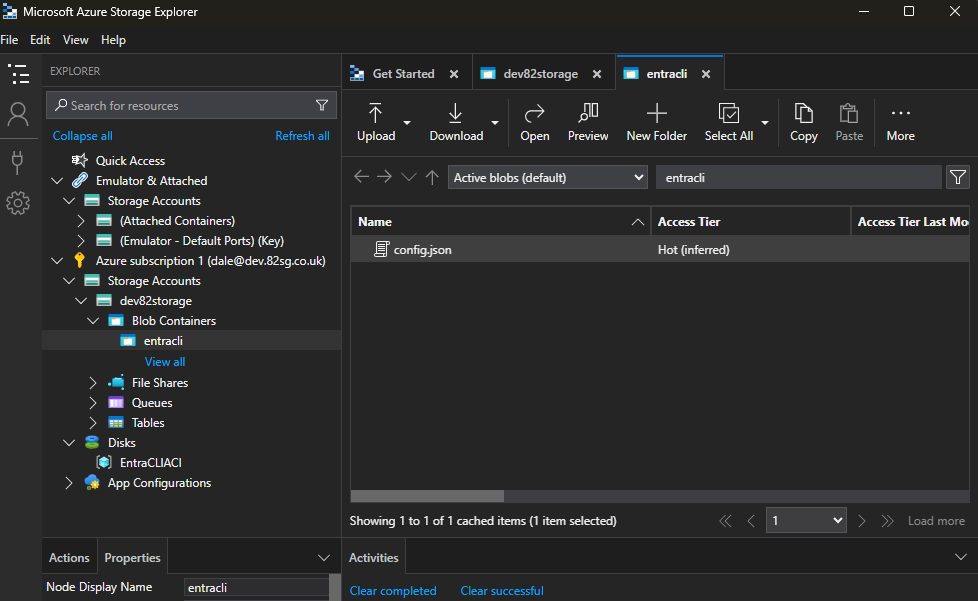
Drag and drop the config.json file you created previously from your device to the Blob Container you have created.
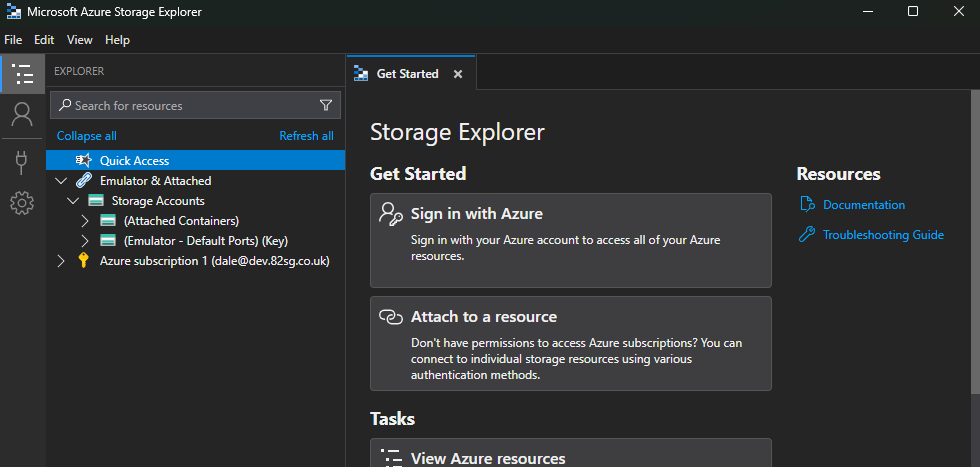
Open the Subscription, and expand the Storage Accounts option - you will see the account previously created.
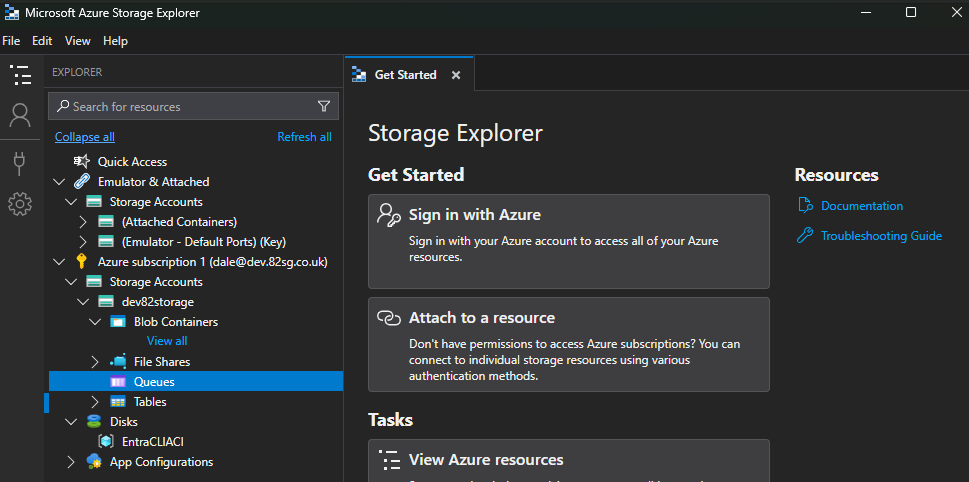
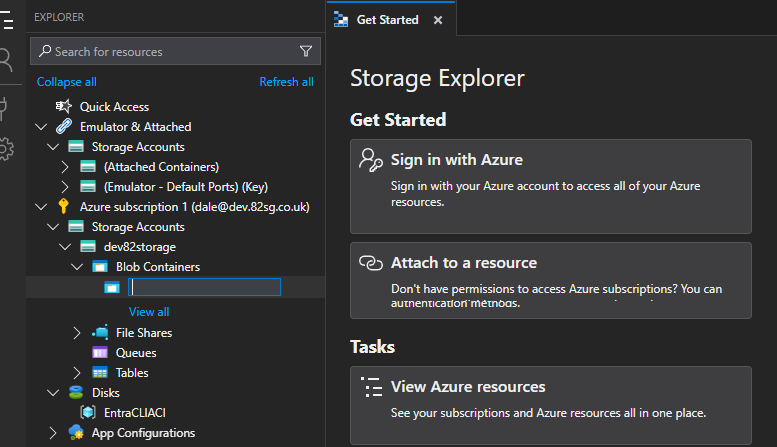
Data cannot be uploaded to the root of Blob storage. Right click on the Blob Containers item, and select Create Blob Container. Name the blob container - use entracli or similar (Note: Blob containers can only contain lower-case letters, and numbers)
Drag and drop your config.json file created previously from your device to the Blob Container you have created.
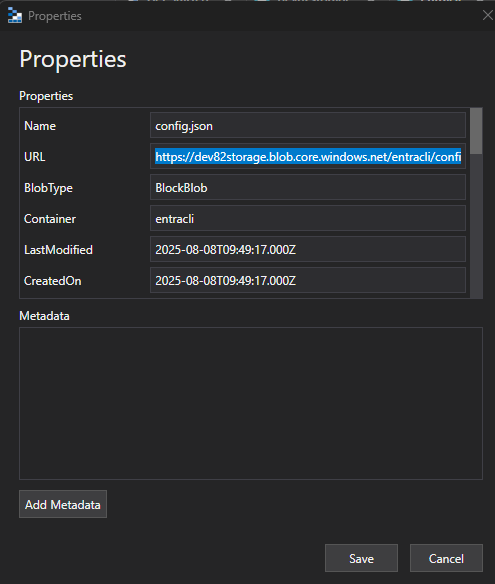
Right click on the Blob Container, and select Properties. Copy the Blob URL and update the $ConfigurationBlobUri variable in the PS script.
Press Enter - the script will now prompt you to enter the Blob URI of the configuration file created.

A new container instance will now be created and started using the details provided.

View the container instances portal at the Azure Portal.

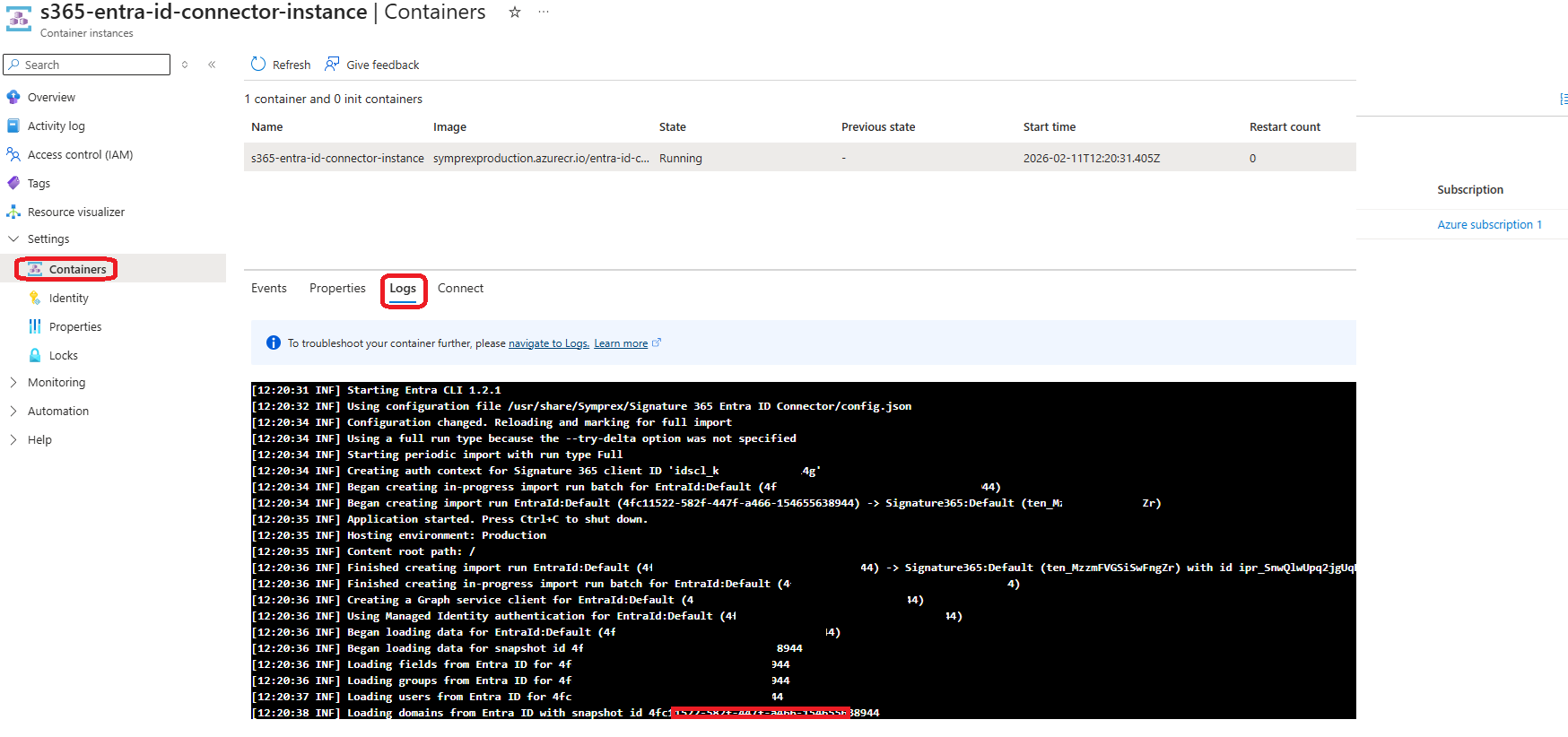
Select the new container instance, then Settings > Containers. Select the Logs tab. You will see details of the container instance loading your users, groups, domains and user photos from Entra ID, and then uploading these to Signature 365.
The Entra ID Connector should be installed on a device within your company's IT infrastructure which is permitted to access your Microsoft 365 tenant.
Prerequisites
- Entra ID Connector entitlement enabled by the support team.
- App Registration management permissions on your Entra ID tenant.
- A Windows server matching the specifications below.
System requirements
The Entra ID Connector can be installed on a physical or virtual server, and supports installation on an Azure VM.
|---------------| | OS | CPU | RAM | | Windows Server 2019+ | 2 Cores | 8GB |
Create the Entra App registration
First, the App registration that will be used by the Entra ID connector must be created to generate the application and tenant ID, and the client secret that will be used.
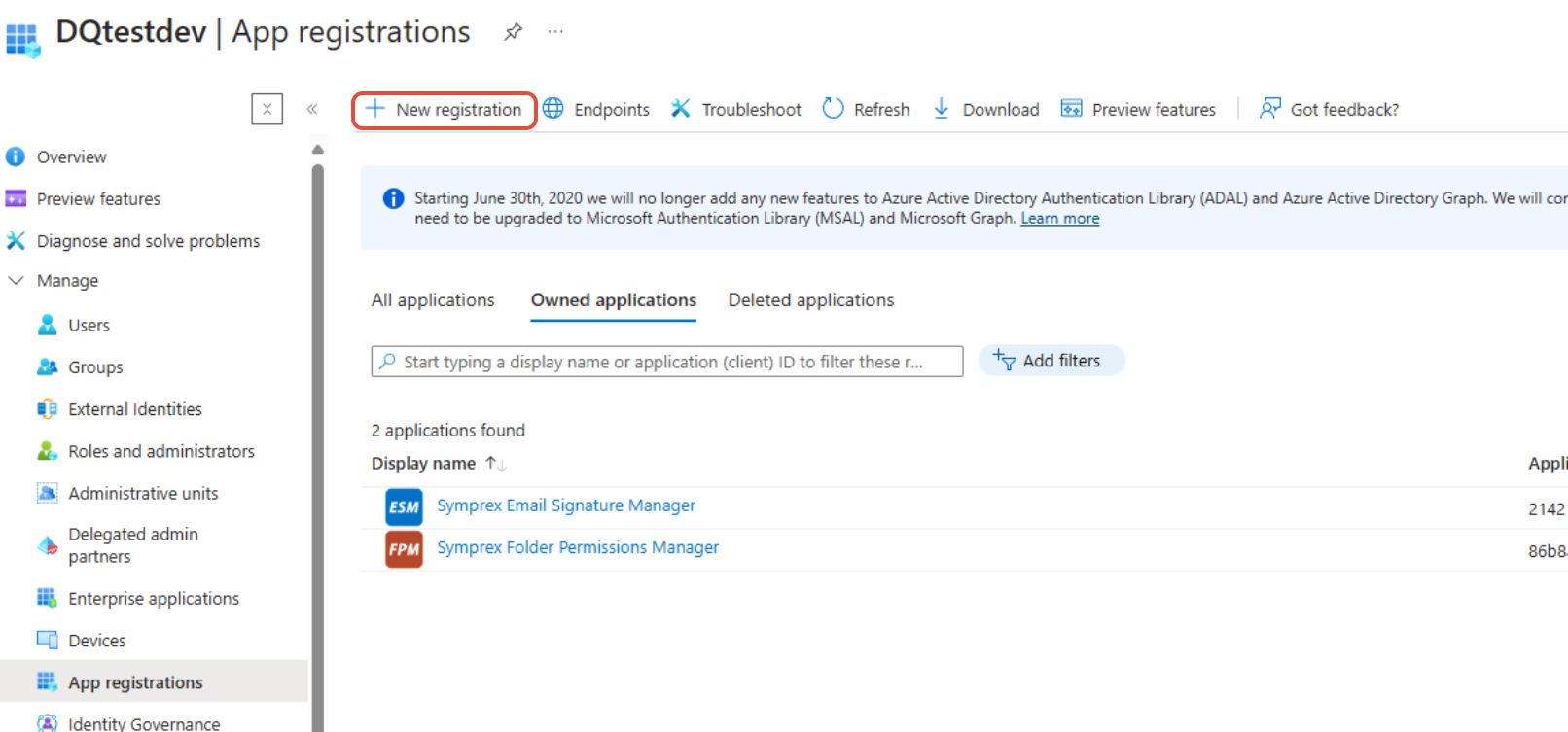
- Login to the azure portal: https://portal.azure.com/#view/Microsoft_AAD_IAM/ActiveDirectoryMenuBlade/~/RegisteredApps
- Under App registrations, select **New registration

- Name the application as desired, for example "Signature 365 Entra ID Connector". Leave the settings as default, and select Register.
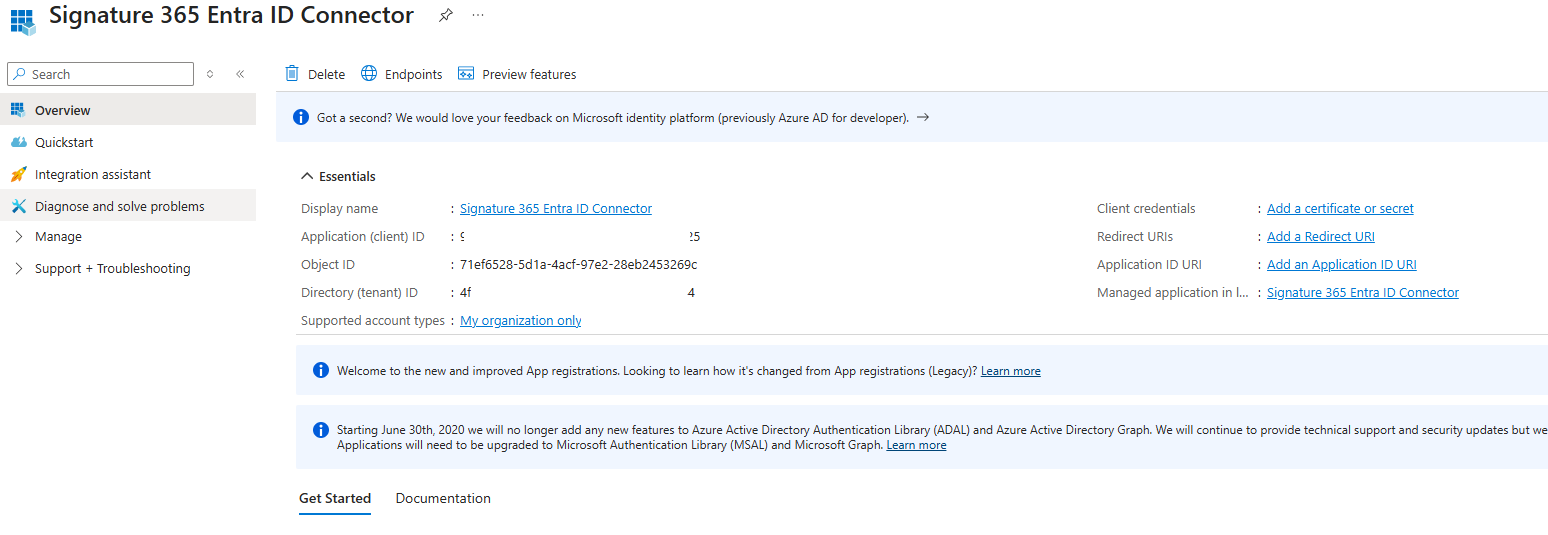
- The App details screen will be displayed. The Application (client) ID and Directory (tenant ID) values will be required to configure the Entra ID connector.
- Next, you must configure API permissions to define access rights for the application. Select the API permissions menu option.
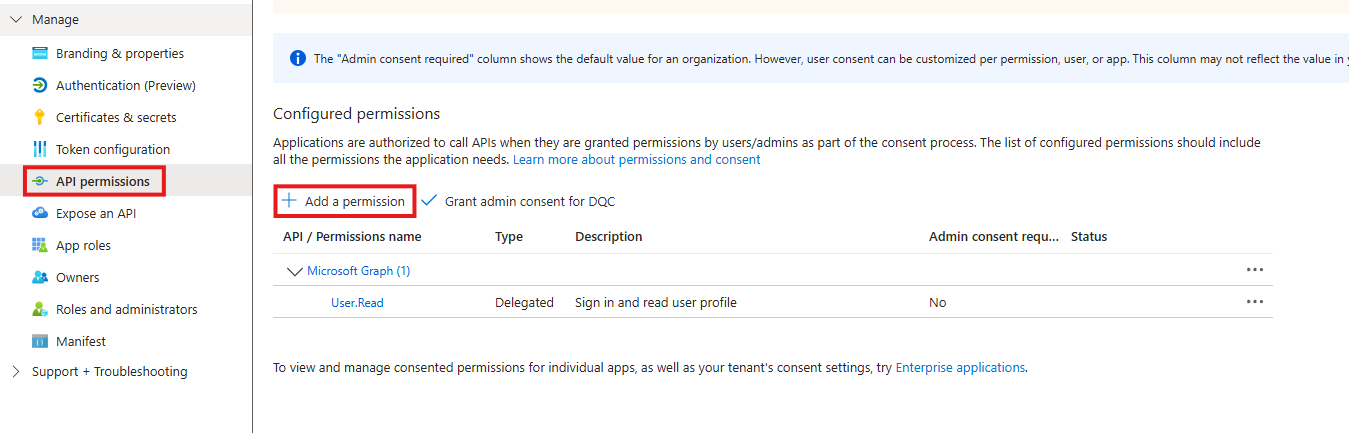
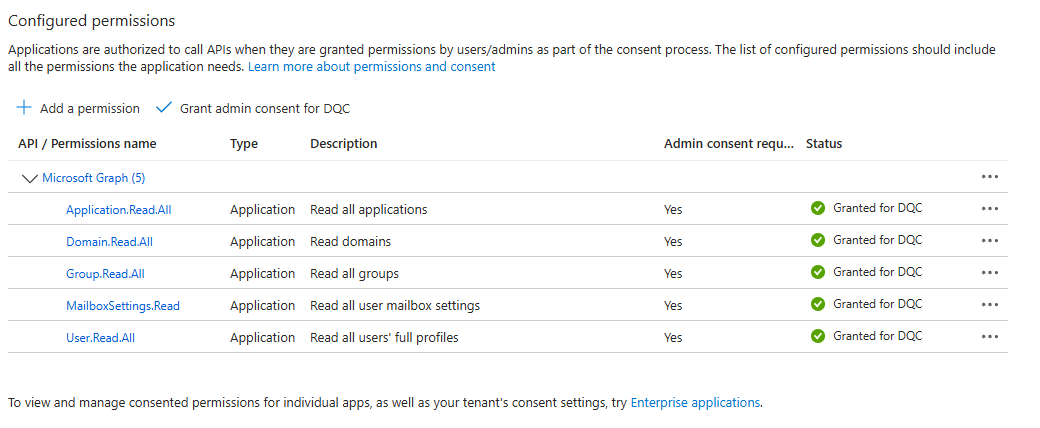
- Use the + Add a permission option, and select Microsoft Graph > Application permissions to add the required permissions as follows:
User.Read.All- MandatoryDomain.Read.All- MandatoryGroup.Read.All- MandatoryApplication.Read.All- Optional, required for extension attributesMailboxSettings.Read- Optional, required to determine mailbox type
Once added, select Grant admin consent for <tenant> to ensure this is allowed for your tenant. The screen displays as follows:
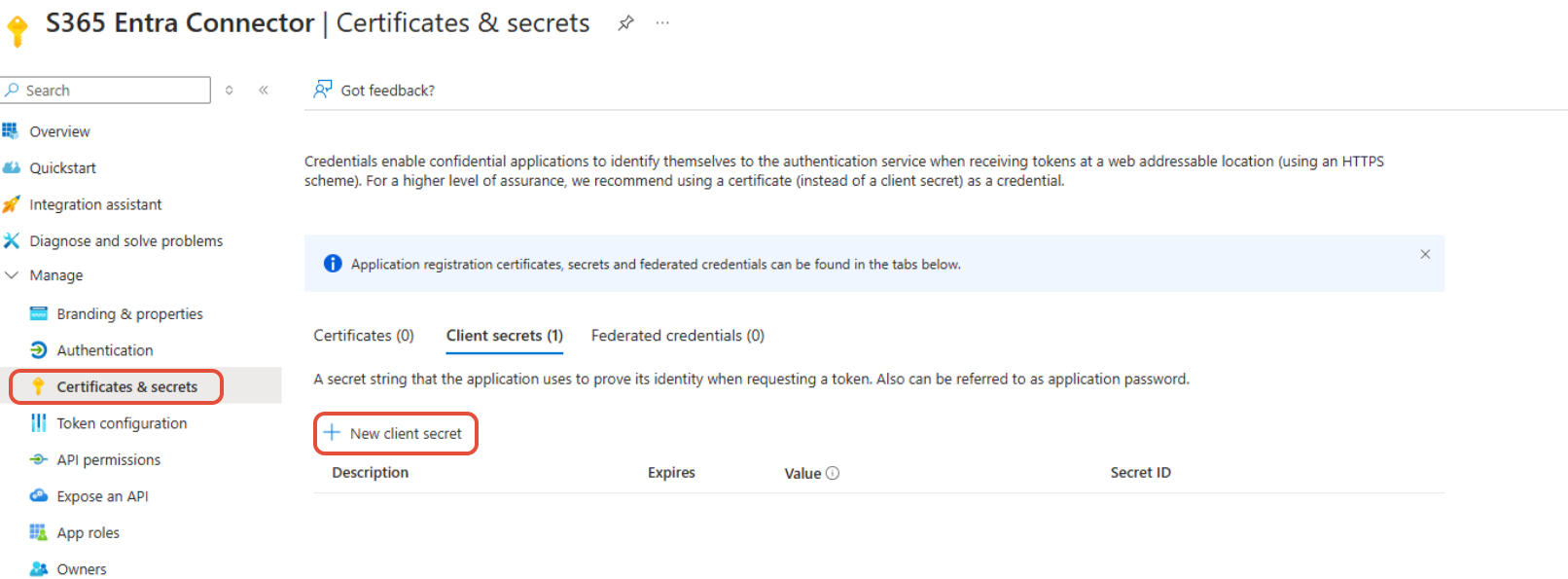
- A client secret must be configured to secure the Application connection. Select the Certificates and secrets option, and select + New client secret:
- Name the client secret, define the validity period and hit Add
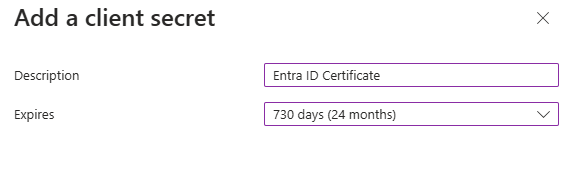
The secret value will be hidden when this is copied to the clipboard. Ensure you have copied this before clearing your clipboard.
Enable the Entra ID Connector in Signature 365
- Log on to the Signature 365 portal; select Settings > Integrations, and select Enable on the Entra ID card
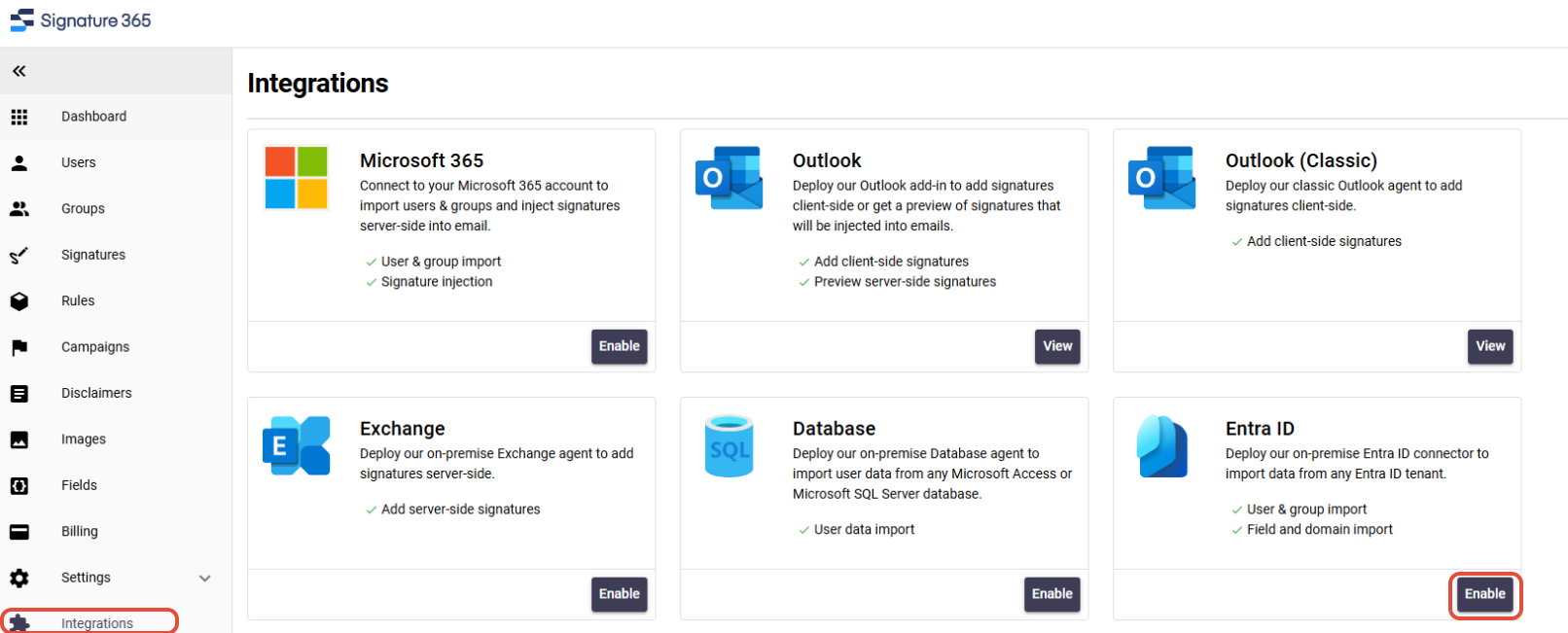
- Select Enable
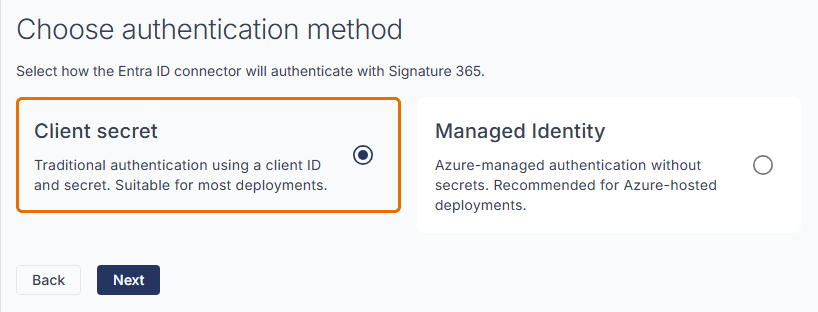
- Select the Client secret option, then click Next
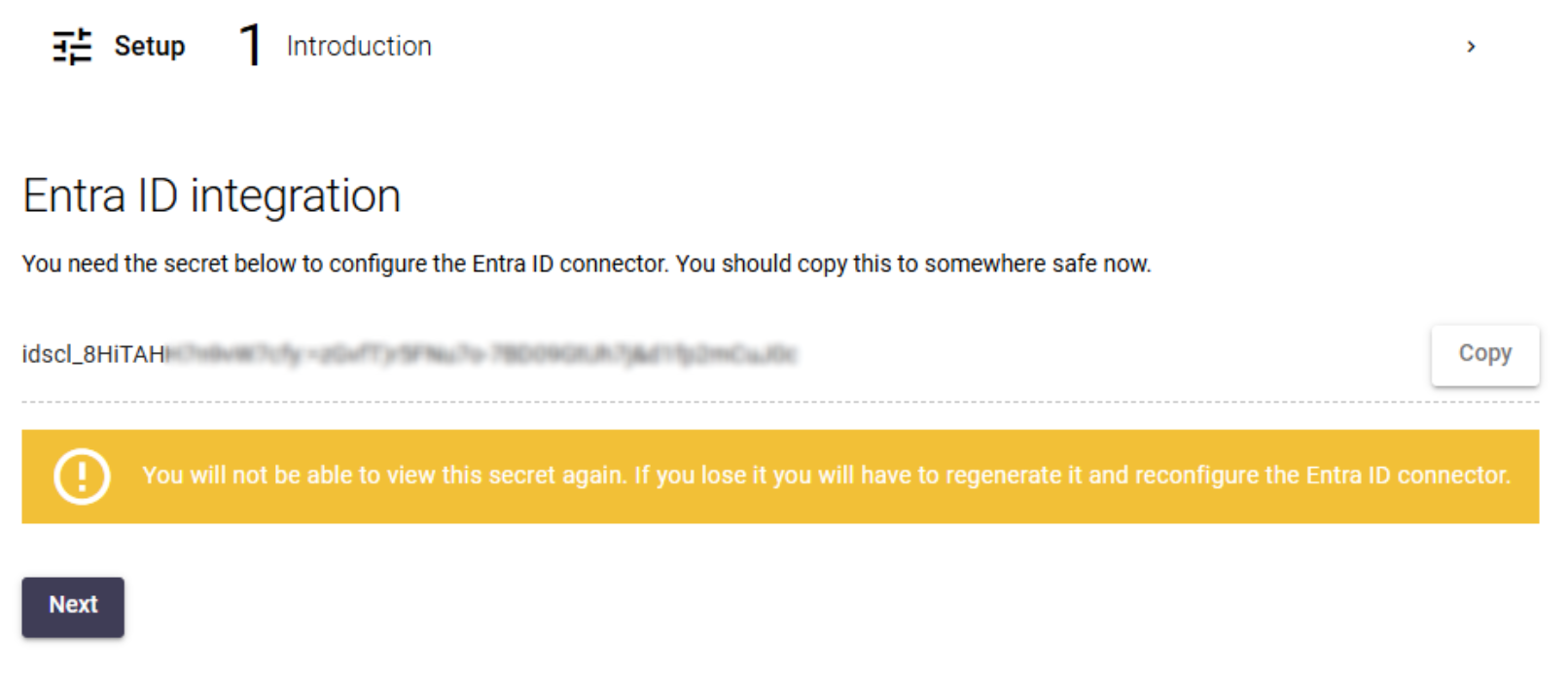
- Copy the generated secret - as noted, this value is not shown again and will need to be regenerated if lost
Install and configure the Entra ID connector
With the App registration completed and Entra ID connector enabled on your tenant, the Entra ID Connector can be installed. The installation does not require any configuration, and will create a local service on the device, running on an hourly schedule to match the cloud connector. On completion this will by default open the configuration json file:
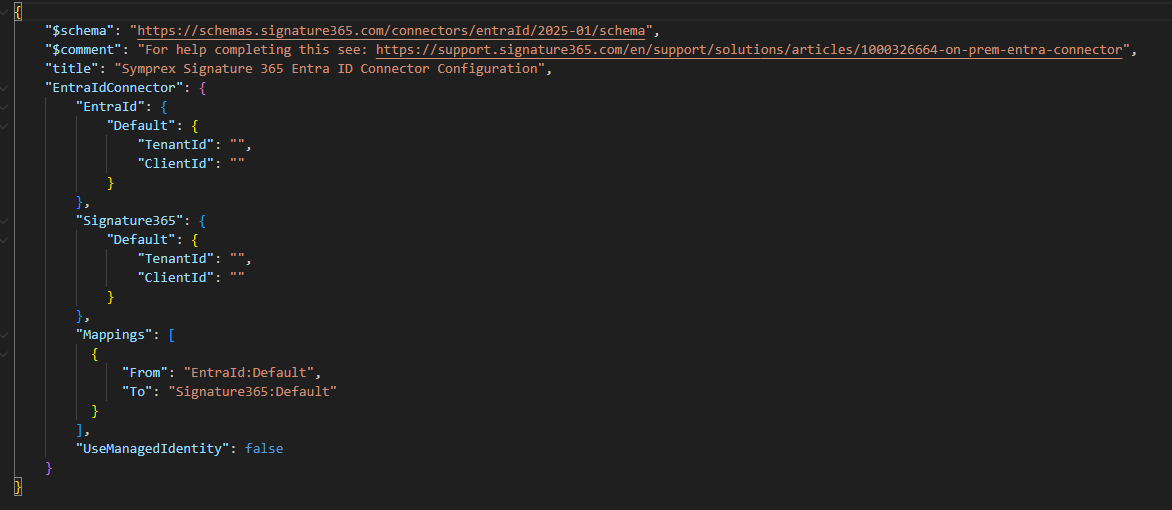
The fields in the example above relate to the following information:
EntraId - Details the connection settings for the Entra ID registration;
- Default: The default Entra ID source to import from;
- TenantId: The tenant ID generated with the App registration
- ClientId: The client ID generated on app registration
- ClientSecret: The client secret created previously
Signature365 - Details the connection details for the Entra ID connector in your Signature 365 tenants, these should be named as the Signature 365 tenants the data will be imported to.
- Default: A reference to the Signature 365 instance - this is referenced in mappings
- TenantId: The tenant ID of the Signature 365 tenant - support can provide this information
- ClientId: The Client ID token generated by the EntraID connector on the tenant
Mappings - Details the groups that should be used to map to the Signature 365 tenants;
- From: For most customers, this will be EntraID:Default, matching the default import source
- To: The destination Signature 365, as named in the
Signature365section - LimitToGroups: The group containing the accounts to be imported into this Signature 365 tenant. This must be entered as the ObjectID listed in Entra ID
UseManagedIdentity - for the on-premises / client secret method this MUST be set to false.
The config.json file should then be saved, and the service restarted to trigger an initial import run.